
Page overview
Step 1: Download the Alexa app
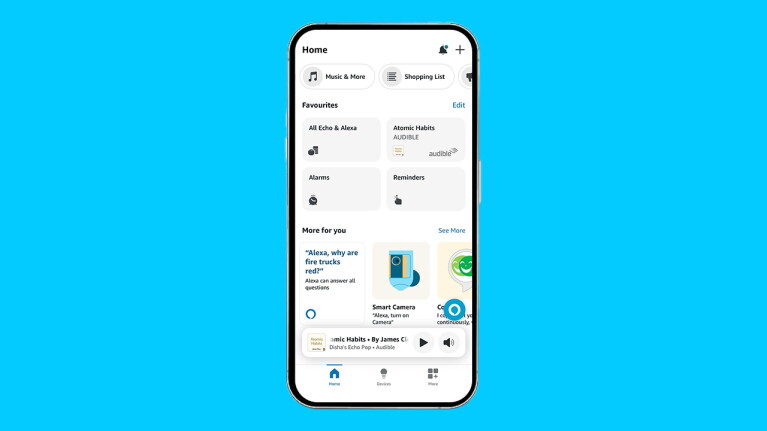
The first step is to download the Alexa app–available on both App Store and Google Play Store–on your smartphone. The app allows you to do many things, including setting up your Echo device, managing Alexa settings, linking your compatible smart home appliances, setting up Alexa Routines, enabling Alexa Skills, and much more.
Once you’ve downloaded the Alexa app and logged into your Amazon account, you’ll be prompted to register your new device.
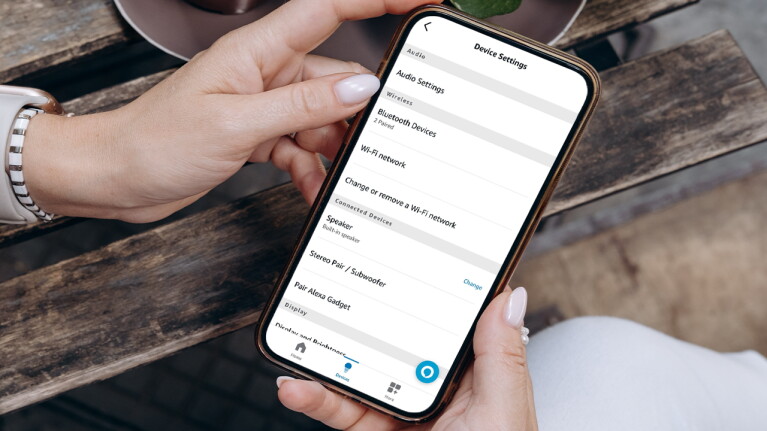
Once you’ve set up the Alexa app, you can use it to connect your Echo device to your phone by following these six simple steps:
- Put your Bluetooth device in pairing mode
- Open the Alexa app
- Select Devices
- Select your device
- Select Device Settings
- Select Bluetooth Devices, and then Pair A New Device
If you need help connecting your Echo to WiFi, below are the steps:
- Go to your device page in the Alexa app and tap Devices in the bottom bar.
- Once you’ve clicked on your specific device, you’ll see a window at the bottom of the screen labeled Status that will give you information about your WiFi connectivity.
- You can also try saying, “Alexa, are you connected to the internet?” and Alexa will provide network diagnostics for your device. Find more information on WiFi connectivity.
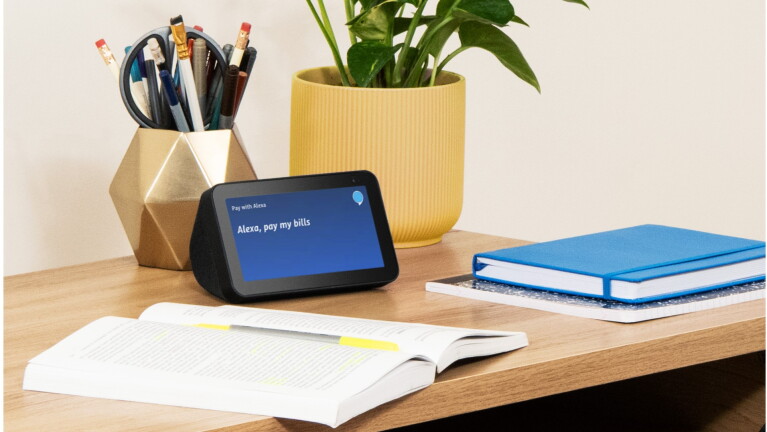
After connecting your Echo to the internet, you’ll be prompted to set up voice ID as you register your Echo device. Voice ID is a great way to kick-start the benefits of using Alexa. The opt-in service allows you to get a personalised experience for a range of features by saying a few prompted phrases in the app. Voice ID can help with sending personal messages from your Echo or having reminders sent to your phone. Learn how to set up voice ID.

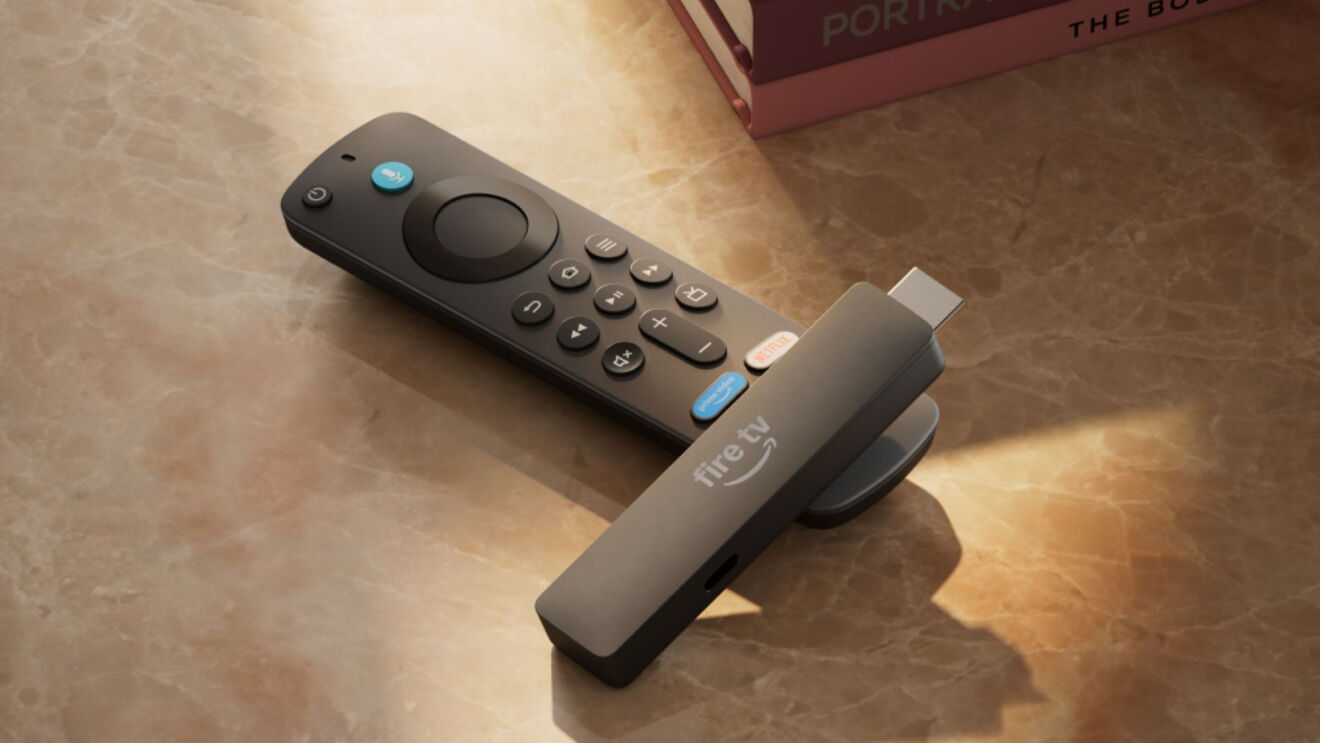
Register an account for a music service provider to listen to your favourite tunes. Your Echo smart speaker can play music from Amazon Music and third-party services including Spotify, JioSaavn, and Apple Music. If you’re also setting up a Fire TV device, simply download the respective music service provider’s app from the App Store.
To connect your Echo smart speaker to any of these music providers, tap More from the bottom bar of the Alexa app and click Settings. Then tap Music & Podcasts under Alexa Preferences, and then choose Link New Service. From there, simply select your music service provider and follow the on-screen instructions. Once you’re connected, you can play music using simple voice commands.
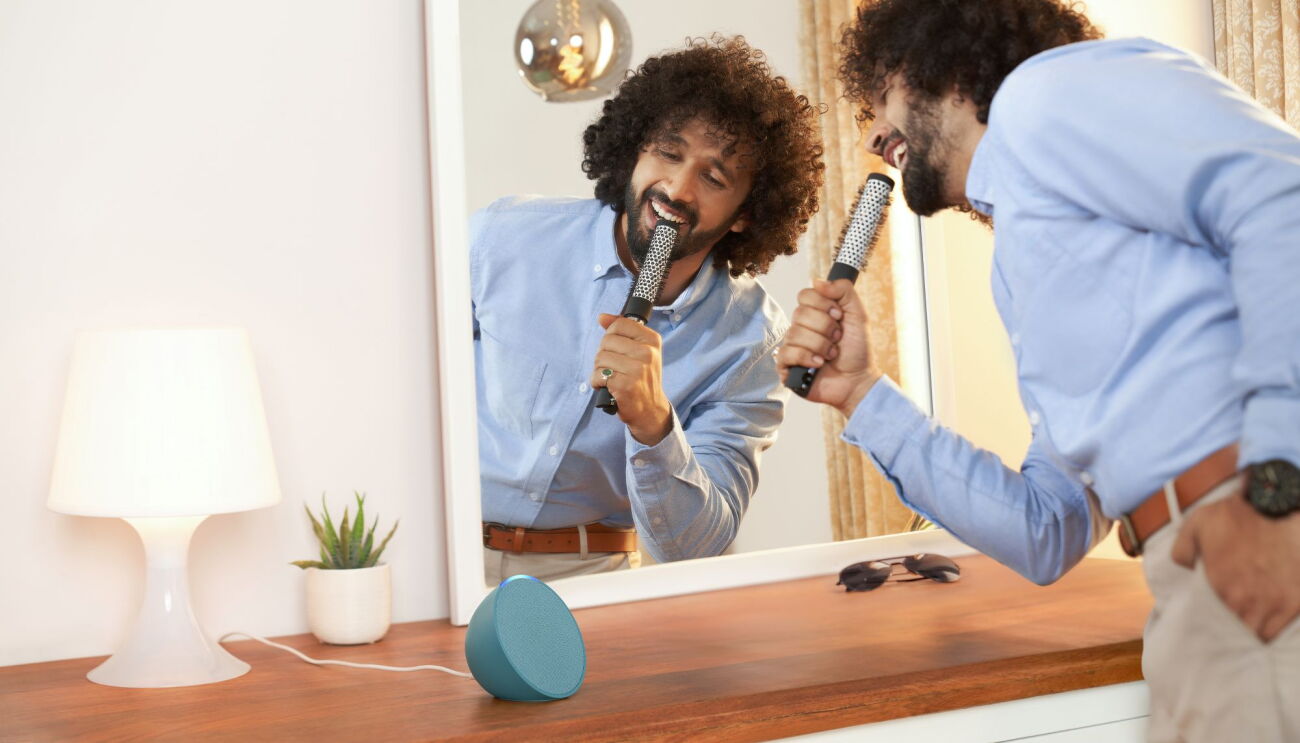
Have a song stuck in your head? Ask Alexa to play it. Someone’s at your door and you need to pause the music? Say, “Alexa, stop” or “Alexa, pause.” View the full rundown of all music-related requests you can make with Alexa, you can fill your whole home with music, radio, podcasts, audio books, and more with multi-room music.Try saying, “Alexa, play music everywhere.”